Add New Record
Tap or click on a safe's name to get to its contents, then click the  Add button. Select Password, Note, File, Card or Folder in the drop-down menu.
New Password Record
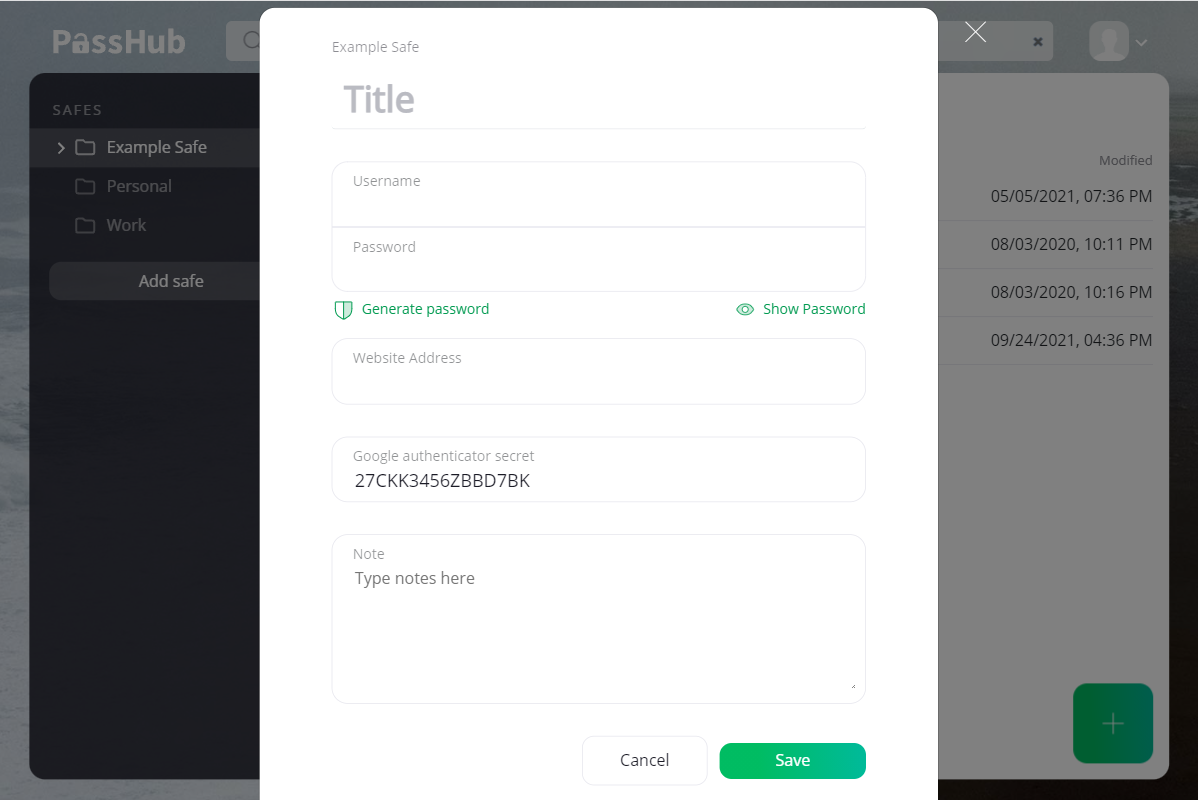
Fill the form shown below, where
- Title - identifies the account entry. It is the only required field in the form.
- Username/password - the credentials of the account. Use the provided random password generator to get a strong password by simply clicking Generate Password.
- Website address - network name or IP address of the resource.
- Secondary URL - alternative URL, may be used for
- Notes - specific notes, instructions, or any other messages you want to include. These are safely encrypted and stored with each entry.
Secondary URL
There are websites for which the basic model of a single login page with username/password fields does not apply. While you can still manually copy and paste credentials, browser extension autofill fails. The Secondary URL parameter of the Passhub password record may help. Consider the following use cases:
- a site with two login pages
- a site with many login pages, which can be described using wildcard notation, e.g.
*.somesite.com. See below for details. - a site that uses any form of OpenID Connect (e.g. Login with Google). For such a site, there is no dedicated login page. Instead, the user is redirected to the identity provider (e.g. Google's page
https://accounts.google.com/v3/signin/identifier?continue=https..). See below how to use Passhub with Google and Microsoft accounts.
Wildcards in the URL
You can use an asterisk symbol * as a wildcard in the URL string the same way as you do for filenames. The asterisk stands for any string (including an empty string), allowing greater flexibility in the browser extension autofill.
We do not restrict the wildcard to the subdomain portion only, so use it at your own risk.
Examples:
*.mybank.commay be used for login.mybank.com and signin.mybank.com, for example.*mybank.commay be used not only for mybank.com and login.mybank.com but also for fakemybank.com.
Google Accounts Best Practice
A Google account is used across many Google services (gmail.com, drive.google.com, youtube.com, etc.) and on third-party sites that implement the "Sign in with Google" feature. Google uses OpenID Connect to authenticate users. In this case, the actual login URL (https://accounts.google.com/v3/signin/identifier?continue=https...) differs from the initial URL (gmail.com or drive.google.com). Moreover, the URL may contain query parameters specific to a particular context or service.
Because Google accounts are used so widely, it is not unusual to have more than one of them.
To allow credential autofill on Google login pages, we recommend the following:
- Set the Title of the Google account to match the username (xxx@gmail.com) so you can select the correct account in the browser extension.
- Set the URL to accounts.google.com.
Microsoft Accounts
The guidance for Google accounts also applies to Microsoft accounts (outlook.com, office.com, azure.com, etc.).
For credential autofill, use the URL https://login.microsoftonline.com or https://login.live.com (both variants work at the time of writing).
Google Authenticator (TOTP, Time-based One-Time Password)
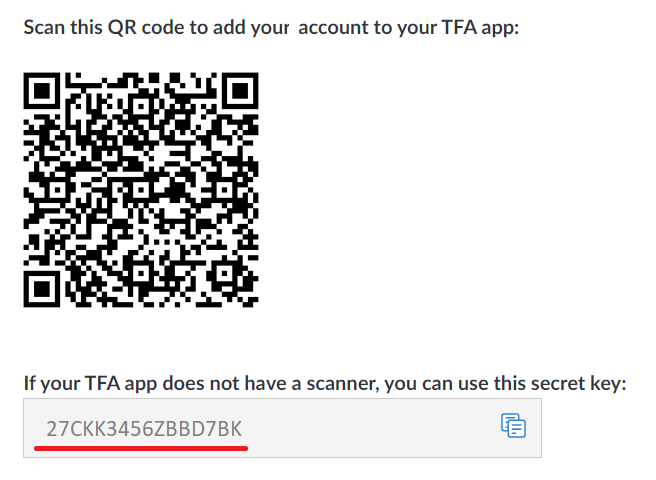
You can add a second factor authenticator (rfc6238) to the login entry. PassHub generates a six-digit sequence automatically for you. The one-time code generation is based on a shared secret (base32 string), which usually can be found close to the QR code on the service provider site, e.g.
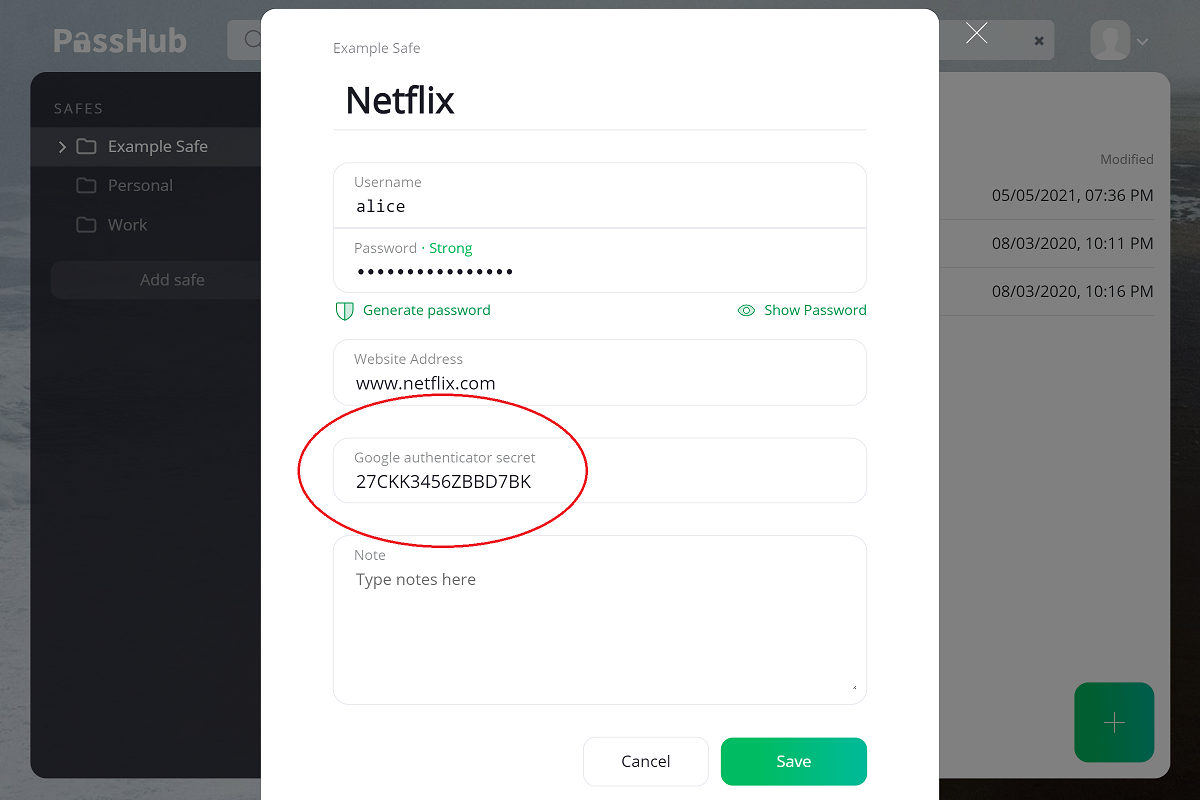
In the Login Entry form, click Add Google Authenticator secret to open the TOTP input field. Enter the shared secret code.
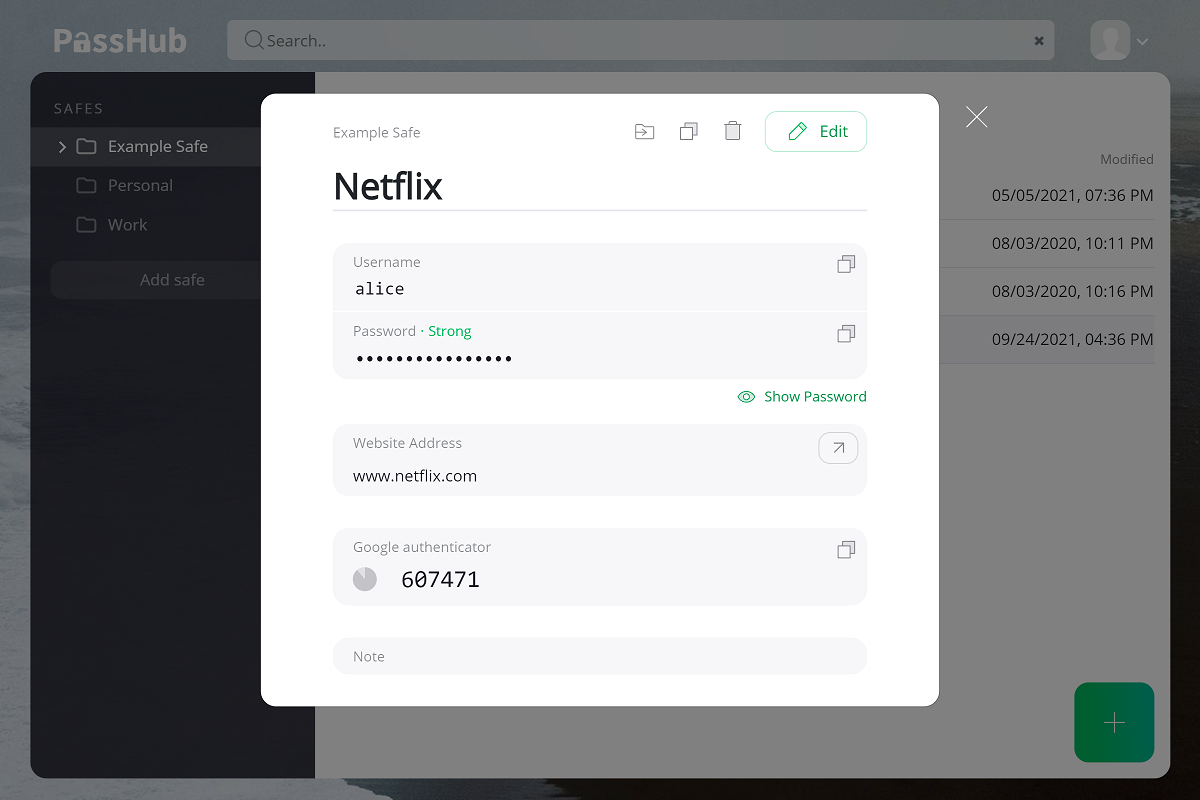
Now the TOTP-code will be shown in the Login view, along with time remaining till the code change:
New Note
Note is a special type of record to store arbitrary, unstructured texts. The Note dialog contains only the Title and the Notes fields.
New File
You can store files in PassHub, too! These may be sensitive documents you share with clients, SSL certificates used widely in IT, and so on. File names and content are encrypted the same way as all the other data in PassHub.
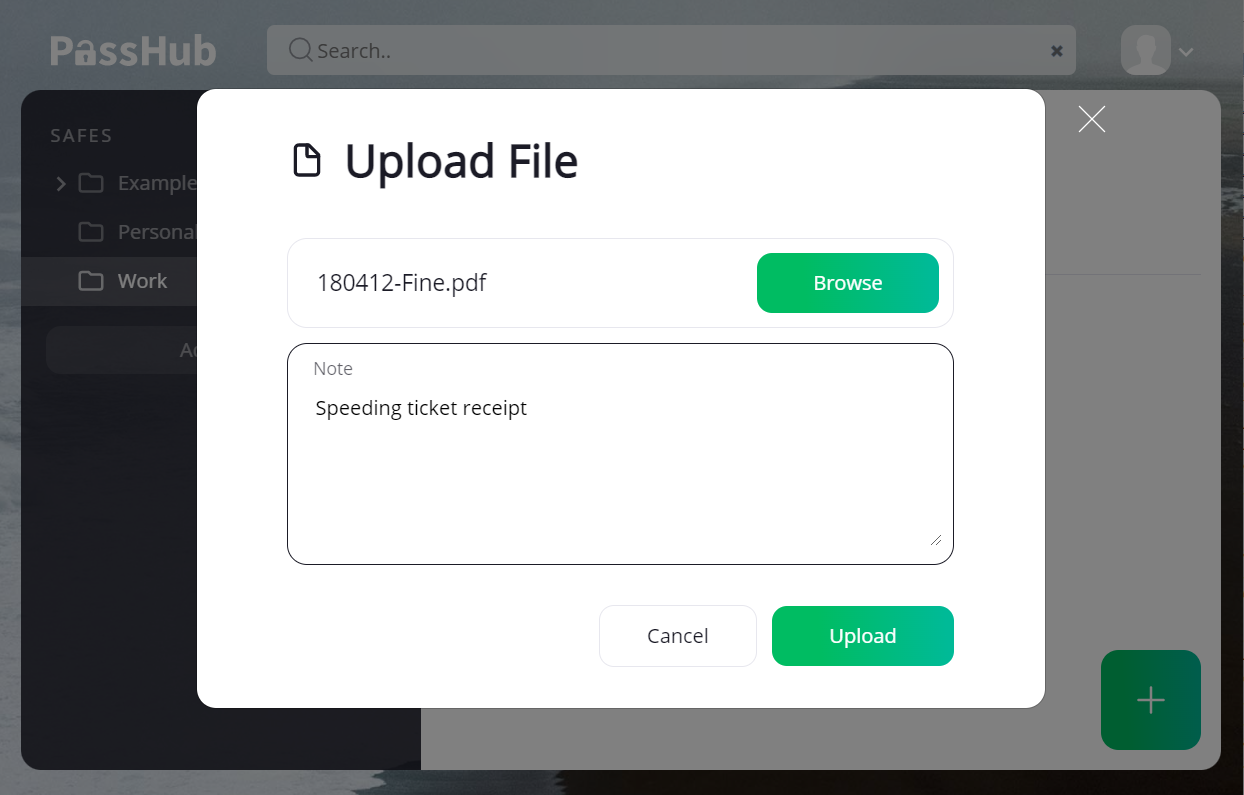
Click the Browse button to select a file, or, on a desktop, just drag the file into the filename field. You can also add a note, which can help you search for this file in the future.
When finished, click the Upload button.
:::note Upload multiple files
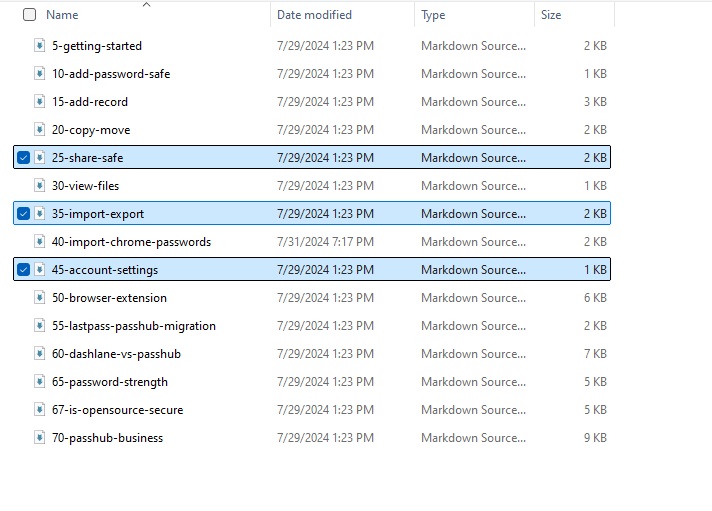
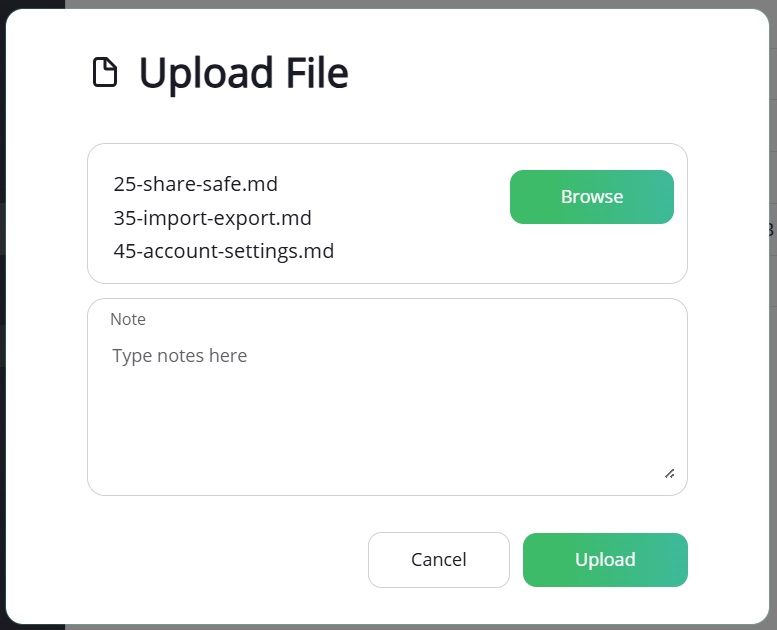
It is possible to upload a number of files in one step: using multiple selection feature of the operating system, choose files in the Browse dialog or Drag-and-Drop them on the desktop.
:::
New Credit Card
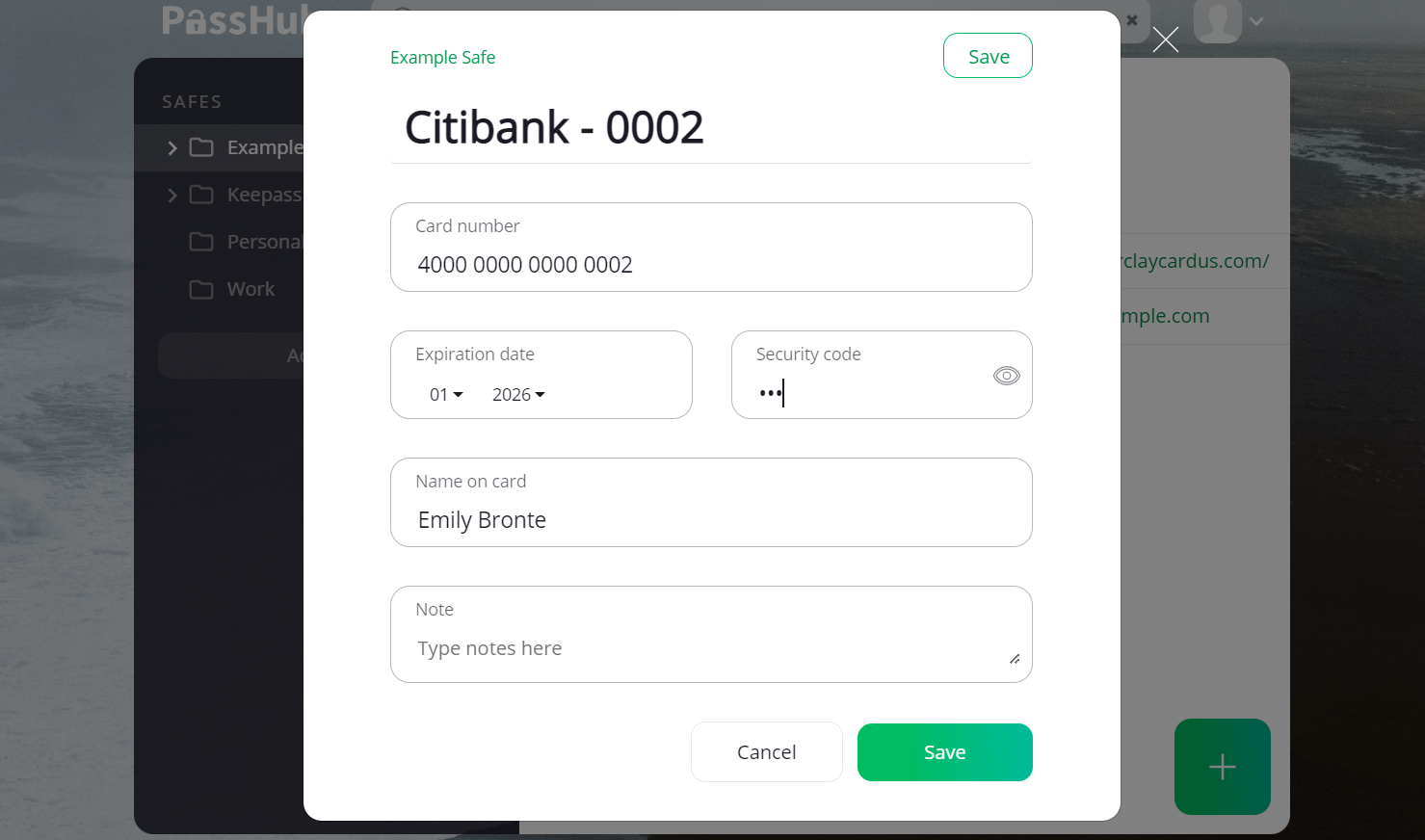
Storing credit card data is straightforward: just enter the credit card number, owner's name, CVV, and expiration date into the corresponding fields.
You can use the PassHub.net browser extension to automatically fill in your card data when you shop online. For details, see the Browser extension page.