How to migrate from 1Password to PassHub.net
Step-by-step instructions
To migrate your data from your 1Password account to PassHub.net, follow the four steps below.
Export 1Password Data
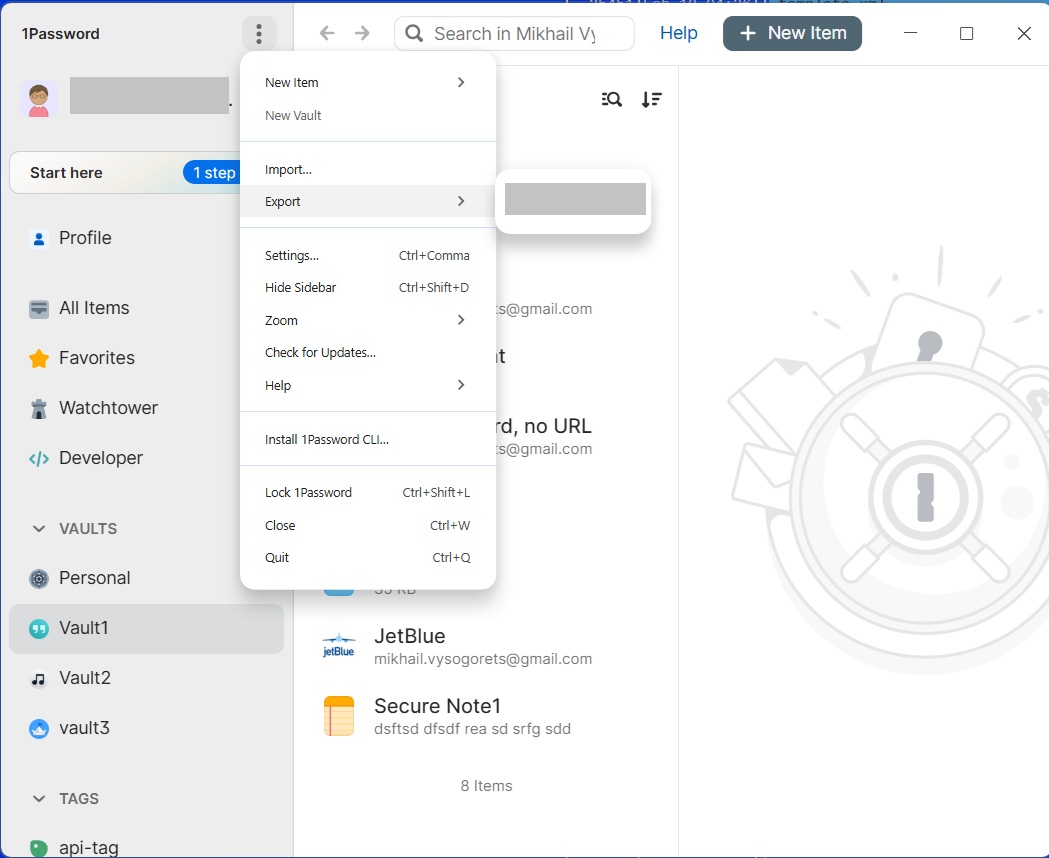
Step 1. In the desktop application (Windows shown), open the three-dot menu and select the "Export" item:
(On Mac, use File > Export > Your Vault.)
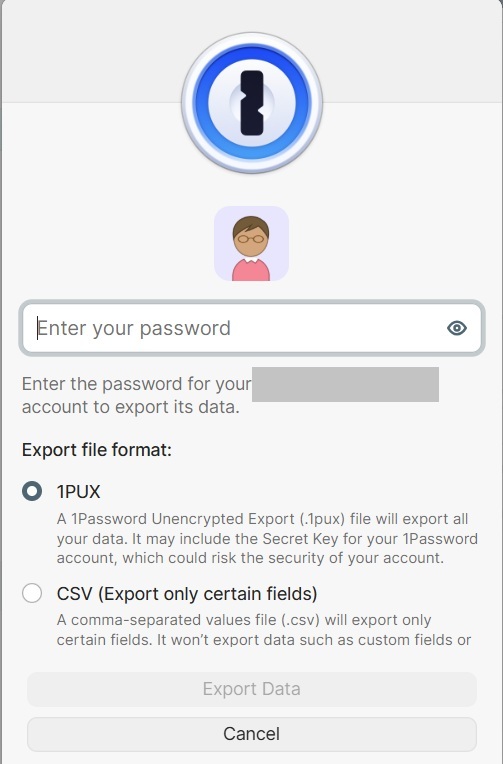
Step 2. In the dialog, select the 1PUX format, enter your password, and click "Export Data."
Import 1PUX file to PassHub
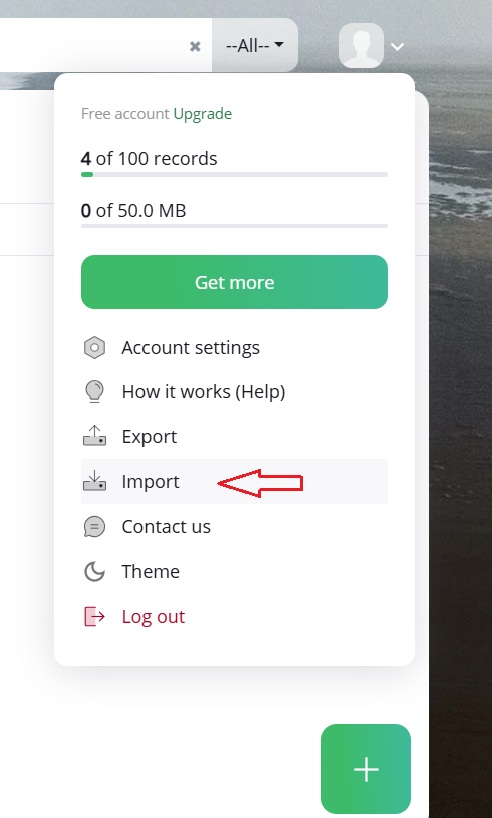
Step 3. Open PassHub.net in your browser, click the account icon, and select "Import."
Step 4. In the import dialog, browse to and select the exported 1Password 1PUX file, then click "Import."
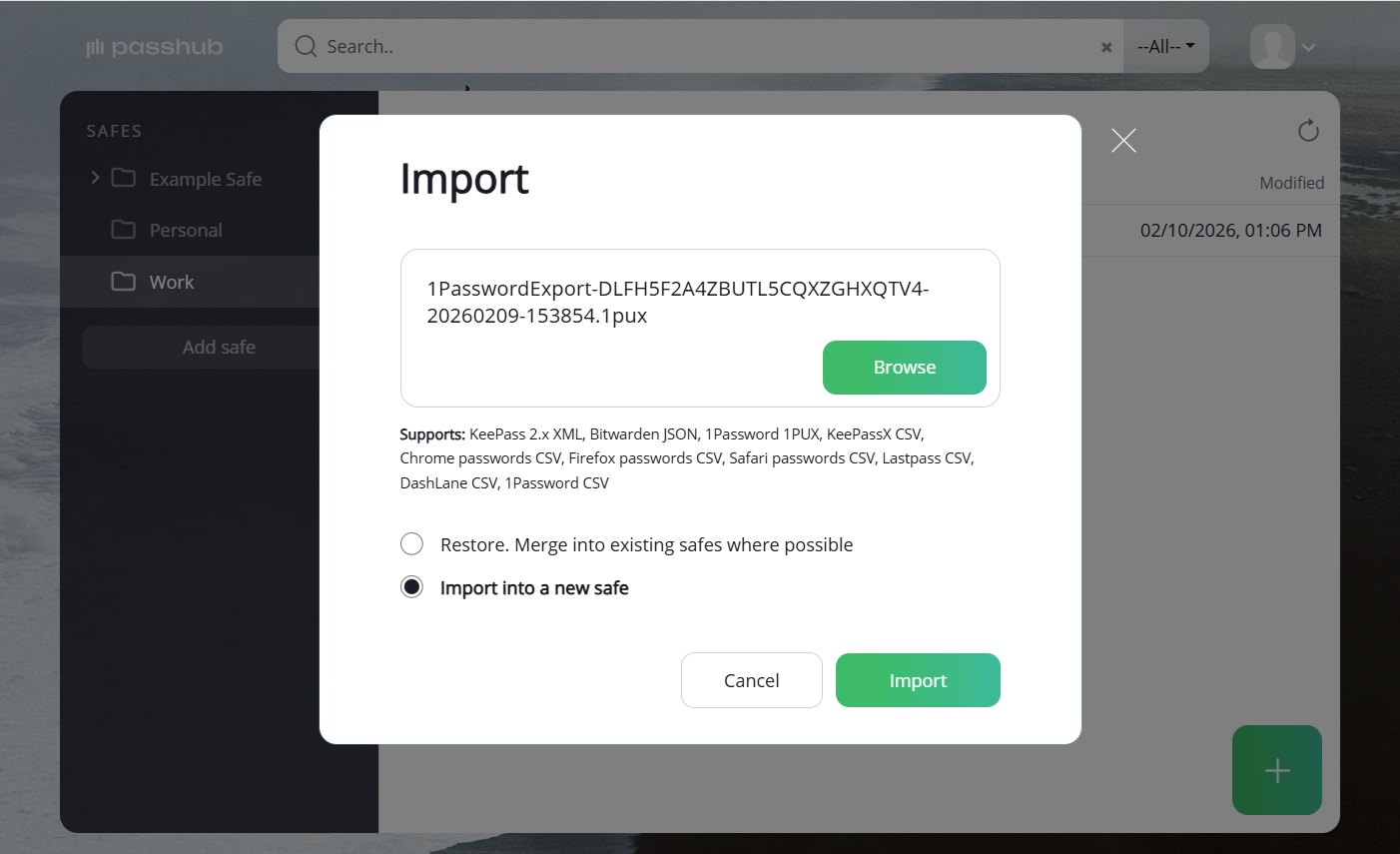
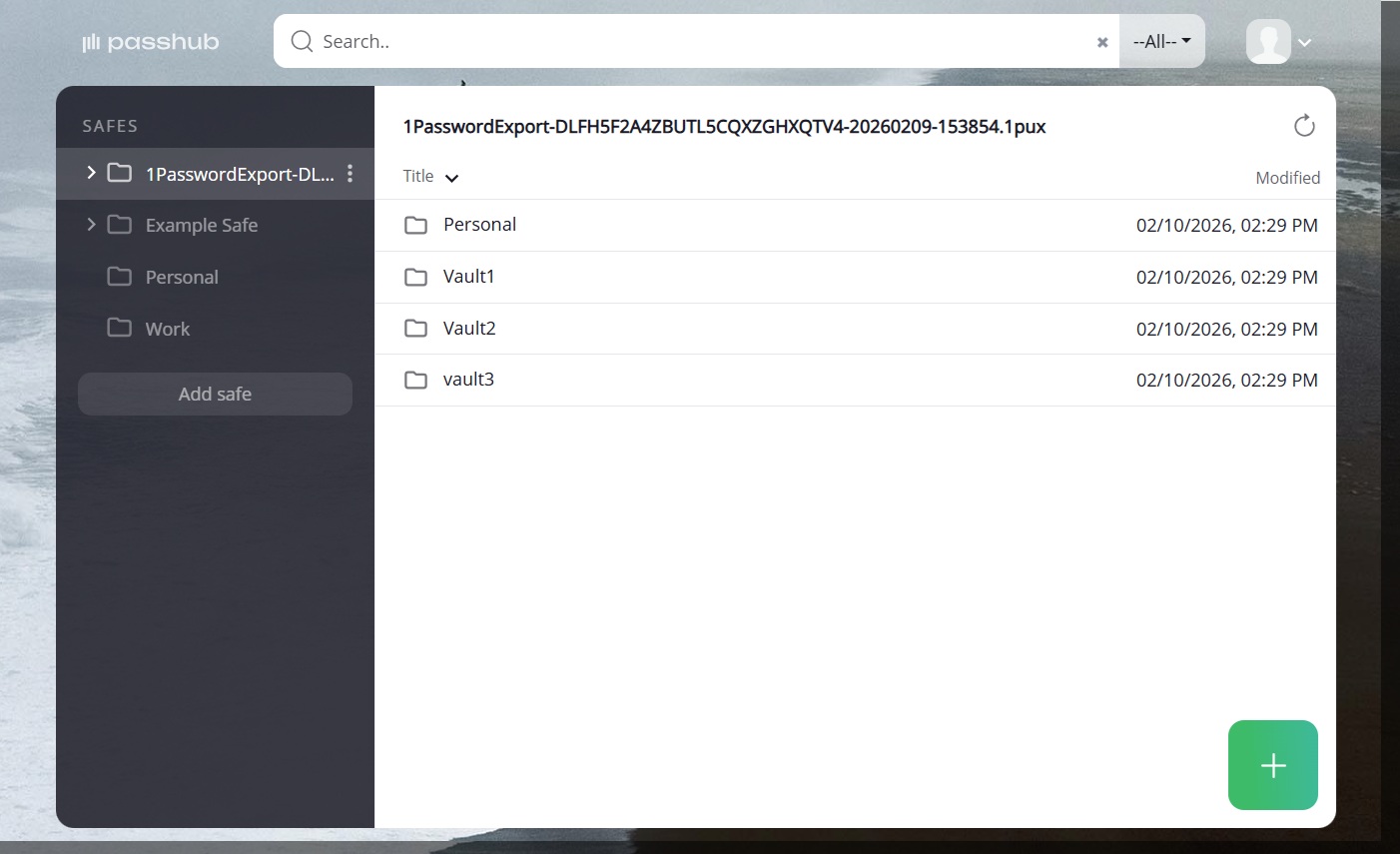
The new safe will be created. You can then rename it to something more readable.
Delete the 1PUX file
Now that your data is safely stored in PassHub.net, we highly recommend you delete the 1PUX file, as it contains unencrypted sensitive data.